

 
|

|
Bulk approving of Requisitions
The Approve Requisition screen looks
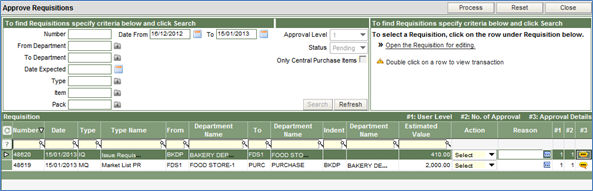
The screen when loaded, lists the requisitions, created in the last 30 days and is pending for approval. However, a different search criterion can be entered to locate any other specific requisition.
As explained earlier, the system while listing the unapproved requisitions also, considers the approval level defined for the user currently logged into the system. It lists the indents/requests that are pending for approval based on the respective approval level defined for the authorized person. However, a user, with a higher level of approval, will be able to approve, view and edit any request/indent that is pending for approval at a lower level.
The screen has been divided into three sections :
1. The Header section – this is the top half of the screen in which, one or a combination of more than one search parameters can be entered to locate specific requisitions for approval. Clicking the Search button will list the indents in the detail section. The Refresh button clears the search parameters for a new search.
2. The Detail section – this is the lower half of the screen in which the searched indents are listed.
|
Column |
Description |
|
Number |
This the requisition number |
|
Date |
The requisition date |
|
Type |
The id of the type of requisition |
|
Type Name |
The description of the requisition type |
|
From |
The id of the department raising the request |
|
Department Name |
The description of the department raising the request |
|
To |
The id of the store/department to which the request is being made. |
|
Department Name |
The full name of the store/department to which the request is being made. |
|
Indent |
The id of the indent department (in case of DQ,MQ) |
|
Department Name |
The full name of the store/department of the indent department. |
|
Estimated Value |
The total estimated value of the requisition |
|
Action |
This is column in which a requisition can be Approved Put on-hold Rejected It has a dropdown list of the above statuses that a requisition can be put to. |
|
Reason |
This is to enter the reason for rejecting or putting an requisition on-hold. |
|
#1 |
This column displays the first approval status |
|
#2 |
This column displays the second approval status |
|
#3 |
This
column displays the third and further levels of approval log status
on clicking the small yellow icon |
 .
.
3. The action buttons – these are displayed at the top right of the page. The actions that can be performed are :
Process – this button is like the Save button, which will save the list of requisitions with the respective status.
Reset – this button is used to set the screen to its original state as when it was loaded.
Close – this is to close and exit from the screen.
To approve requisitions in bulk:
1. Select the option of approve from the drop down list of statuses in the Action column. If the details of the requisition needs to viewed or edited, click the link of Open the requisition for editing on the top right section of the screen
2. Click the Process button on top of the screen, to complete the process of approval.
