

 
|

|
VAT Setup
The VAT setup is required by the system to apply the VAT component to the items, which are vatable, automatically at the time of creating the purchase order and at the time of recording the receipt of items from the supplier.
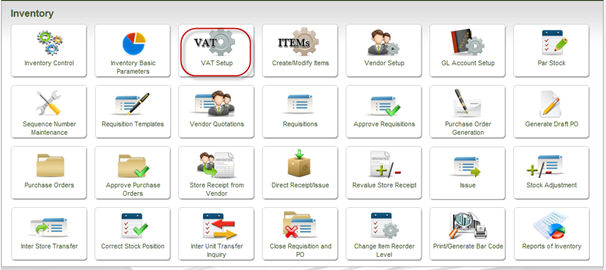
To access the screen, click the option of VAT setup in the main menu of the Inventory module.
The following screen is loaded:
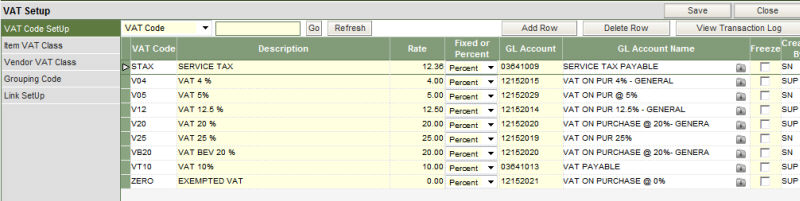
The various components of a VAT setup are listed on the left of the screen and are:
This section is where all the codes for the various VAT percentages are defined.
The section displays:
|
Column No |
Heading |
Description |
|
1 |
VAT Code |
This is the code to indicate the VAT percentage being defined. It can be up to 4 characters and alphanumeric. |
|
2 |
Description |
The description or the long name of the VAT code entered in the previous column. |
|
3 |
Rate |
The amount of the VAT being defined. |
|
4 |
Fixed or Percent |
This is the indicator by which the system understands, if the VAT amount is a fixed or a percentage figure. |
|
5 |
GL Account |
The GL account code that should be affected when the particular VAT code is applied on an item. |
|
6 |
GL Account Name |
The description of the GL code, which is displayed automatically by the system on selecting the account code in the previous column. |
|
7 |
Freeze |
This is a checkbox column, which can be used to freeze a VAT code when not applicable or redundant. |
|
8 |
Created By |
This column displays the id of the user who has created the specific VAT code. |
|
9 |
Created On |
The date on which the VAT code was created in the system. |
The item VAT class is various classifications of items, item group.
In Webprolific once an item is defined within an item group and transactions posted for the item, the item group cannot be changed. Hence the concept of further classifying the items of a similar item group. The system applies the VAT component on the item classification. Therefore, any change in the VAT percentage of an item can be effected by changing the classification (item VAT class).
Example: An item group – Perishables is defined in the system, which has the following items listed
Milk, Vegetables, Fruits & Yogurt. The VAT percentage for each of these items is:
Milk – 12.5 %
Vegetables – NO VAT
Fruits – NO VAT
Yogurt – 10.00 %
These items can be classified into different Item VAT Class, although they belong to the same Item Group:
|
Item Group |
Item |
Item VAT class |
|
Perishables |
Milk |
Dairy Products (DP) |
|
Perishables |
Vegetables |
- |
|
Perishables |
Fruits |
- |
|
Perishables |
Yogurt |
Dairy Products (DP) |
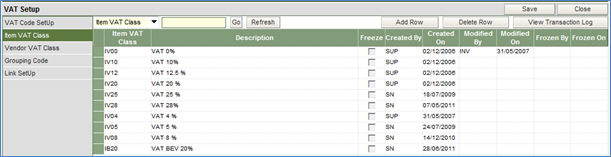
The screen displays the following:
|
Column No |
Heading |
Description |
|
1 |
Item VAT Class |
This is the code to indicate the Item VAT classification. It can be up to 4 characters and alphanumeric. |
|
2 |
Description |
The description or the long name of the item VAT class. |
|
3 |
Freeze |
This is a checkbox column, which can be used to freeze a VAT code when not applicable or redundant. |
|
4 |
Created by |
The id of the user who created the Item VAT Class |
|
5 |
Created On |
The date on which the Item VAT class was created. |
|
6 |
Modified By |
The id of the user who modified (if there has been any modification) the Item VAT Class. |
|
7 |
Modified On |
The date on which the record was modified. |
|
8 |
Frozen By |
The id of the user who has marked the Item VAT Class as frozen. |
|
9 |
Frozen On |
The date on which the record was frozen. |
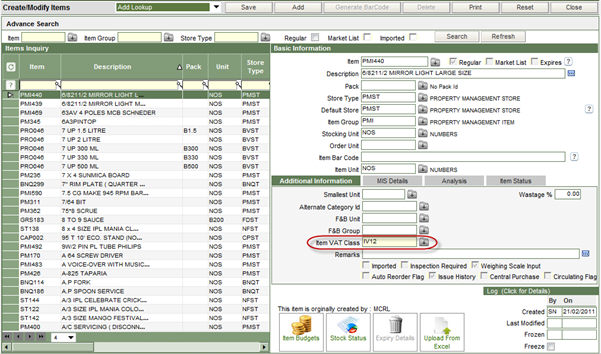
Once the Item VAT Class is created in this section, the same has to be defined against each item in the Create/Modify Items screen
The Vendor VAT class is to classify vendors/suppliers of the same supplier group into logical categories. This categorization is required for items which have a varied VAT percentages based on the geographical location of the supplier.
Example: Milk when supplied by the local supplier, the VAT percentage is 10%, but when supplied by a supplier from another state, the VAT percentage is 12.5%.
The Vendor VAT class is being explained in a tabular form as:
|
Supplier Group |
Supplier |
Vendor VAT Class |
|
Perishable Supplier |
V001 |
Local Supplier (LS) |
|
Perishable Supplier |
V002 |
Local Supplier (LS) |
|
Perishable Supplier |
V003 |
Domestic Supplier (DS) |
|
Perishable Supplier |
V004 |
Foreign Supplier (FS) |
The screen displays the following:

|
Column No |
Heading |
Description |
|
1 |
Vendor VAT Class |
This is the code to indicate the Vendor VAT classification. It can be up to 4 characters and alphanumeric. |
|
2 |
Description |
The description or the long name of the vendor VAT class. |
|
3 |
Freeze |
This is a checkbox column, which can be used to freeze a Vendor VAT class when not applicable or redundant. |
|
4 |
Created by |
The id of the user who created the Vendor VAT Class |
|
5 |
Created On |
The date on which the Vendor VAT class was created. |
|
6 |
Modified By |
The id of the user who modified (if there has been any modification) the vendor VAT Class. |
|
7 |
Modified On |
The date on which the record was modified. |
|
8 |
Frozen By |
The id of the user who has marked the Vendor VAT Class as frozen. |
|
9 |
Frozen On |
The date on which the record was frozen. |
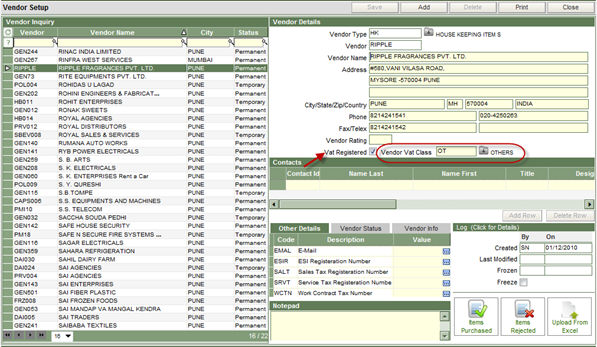
Once the Vendor VAT class is created in this section, it has to be defined against each vendor/supplier who is VAT registered. This is done in the Vendor Master screen as:
These are a list of categories as given by the Govt. of India, into which the purchases of items and the Vat applied will be displayed in the VAT Register. The grouping codes are already available in the system and need not be created by the user. The grouping codes are divided into
- Refundable
- Non- refundable
Within refundable are listed
- Capital Goods
- Others
Within Non-refundable are listed
- Inter-state purchases
- Imported from outside
- Purchases from exempted units
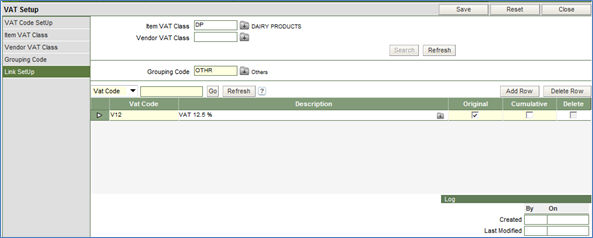
In this section, all the codes created in the previous sections of the VAT setup, are put together to create a link with codes of the VAT percentages. It is from this section that the system understands how much percentage of VAT is to be applied and on which items.
The screen displays the following:
When the vat percentage changes for the same item VAT class on the basis of the geographical location of the supplier, the link setup can be done as :
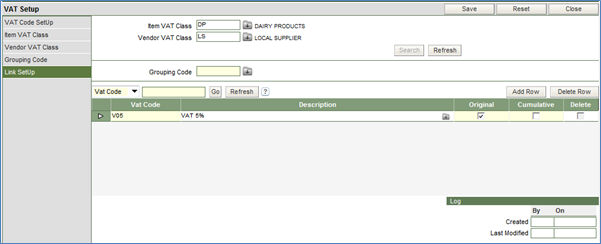
To do the link setup:
1. Enter the item Vat class for which the VAT code is to be linked.
2. Click the Search button. In case the link has been already setup for the specific Item Vat Class, the system will display the same in the lower half of the screen, in the spread sheet. Else, the system will prompt to do the link setup.
3. Select the VAT code from the dropdown in the spreadsheet, of the respective VAT percentage that is applicable on the Item VAT class.
4. Click the Save button to top, to store the link in to the database.
5. In case the VAT percentage differs for the same item on the basis of the supplier, enter the Vendor VAT class along with the Item VAT class and repeat steps 3 and 4.

